




We’ve been listening to your feedback, and today we’re shipping an update that makes WP Rollback significantly more flexible — whether you need to go back, stay put, or move forward.
Reinstall Your Currently Installed Version
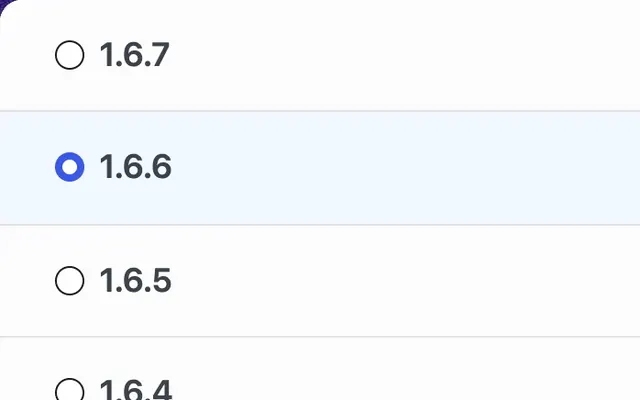
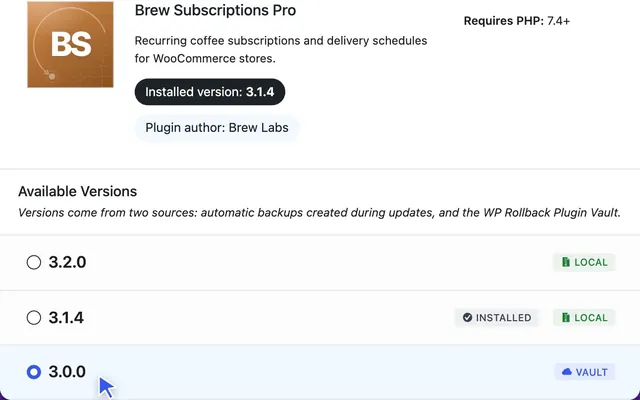
This is the one users have been asking for. Previously, when you opened the rollback screen and selected the version you already had installed, the Rollback button was disabled — offering no way to proceed. That was frustrating, especially for developers and support teams who routinely need a clean copy of a plugin without changing versions.
Starting today, you can reinstall your currently installed version directly from the rollback screen.
This is particularly useful when:
- You suspect a plugin’s files have become corrupted or modified
- You’re troubleshooting an issue and want to restore a clean copy
- You’re testing whether a fresh install of the same version resolves a problem
- You manage multiple client sites and need consistent, reproducible environments
No more workarounds. No more rolling back to an older version and then updating again just to get back to where you started.
The Interface Now Tells You Exactly What’s About to Happen
We’ve updated the rollback screen so the action button and confirmation dialog always reflect precisely what you’re doing — not just a generic “Rollback.”
Three clear actions, one smart interface
| What you select | Button label | What it means |
|---|---|---|
| An older version | Rollback | Classic rollback — going back in time |
| Your current version | Reinstall | Clean reinstall of what’s already installed |
| A newer version | Update | Rolling forward to a higher version |
The confirmation modal updates too. Instead of always saying “You are about to rollback from version X to Y” — which made no sense when you were reinstalling the same version or upgrading — the language now matches your actual intent:
- Reinstalling: “You are about to reinstall Plugin Name version 1.2.3.”
- Updating: “You are about to update Plugin Name from version 1.2.3 to 1.3.0.”
- Rolling back: “You are about to rollback Plugin Name from version 1.3.0 to 1.2.3.”
This removes ambiguity at the most critical moment — right before you confirm a change to your site.
Better Version Comparison Under the Hood
To power these improvements, we rewrote how WP Rollback compares version strings. The WordPress plugin ecosystem uses a wide variety of versioning styles, and our previous comparison logic had some edge cases that could produce incorrect results.
The updated comparison now correctly handles:
- Inline pre-release suffixes without hyphens —
1.0.0beta,1.0.0RC1,1.0b2 - Case-insensitive labels —
RC1,rc1, andRc1are treated as identical - Numeric pre-release ordering —
beta10correctly sorts afterbeta9 - Date-based versions —
20231015, commonly used by some plugin authors - Partial versions —
1.2is correctly treated as equal to1.2.0
This means the rollback screen sorts and evaluates versions accurately across the full range of plugins available on WordPress.org.
Get the Update
These changes are available now in WP Rollback 3.0.12 (free) and WP Rollback Pro 1.2.2. Update from your WordPress dashboard to get the improvements.
Have feedback or a version format we haven’t accounted for? Let us know in the support forums — we read every thread.