
View and Edit Rollback Notes Like a Pro: The UX Upgrade You Didn’t Know You Needed
Ever rolled back a plugin or theme, added a note about why you did it, and then… couldn’t read the whole thing later? Yeah, not the best user experience. Staring at a truncated note like “We had to roll back because the new versi…” and wondering what the rest of that sentence was. Spoiler: it was probably important.
Well, good news! We’ve completely revamped how rollback notes work in WP Rollback Pro 1.2.0, and honestly? It’s so much better now.
The Problem: Notes Were… Not Great
Let’s be real. The old system was functional, but just barely. If you wrote anything longer than a few sentences, it got cut off in the Activity Log. Want to read the full note? Too bad. Want to edit it? Not happening. It was a system you could write in but not edit or read in full again.
The Solution: A Smart Modal That Actually Makes Sense
Here’s what we did: we built a proper viewing and editing experience that treats your notes with the respect they deserve.
Two Modes, Zero Confusion
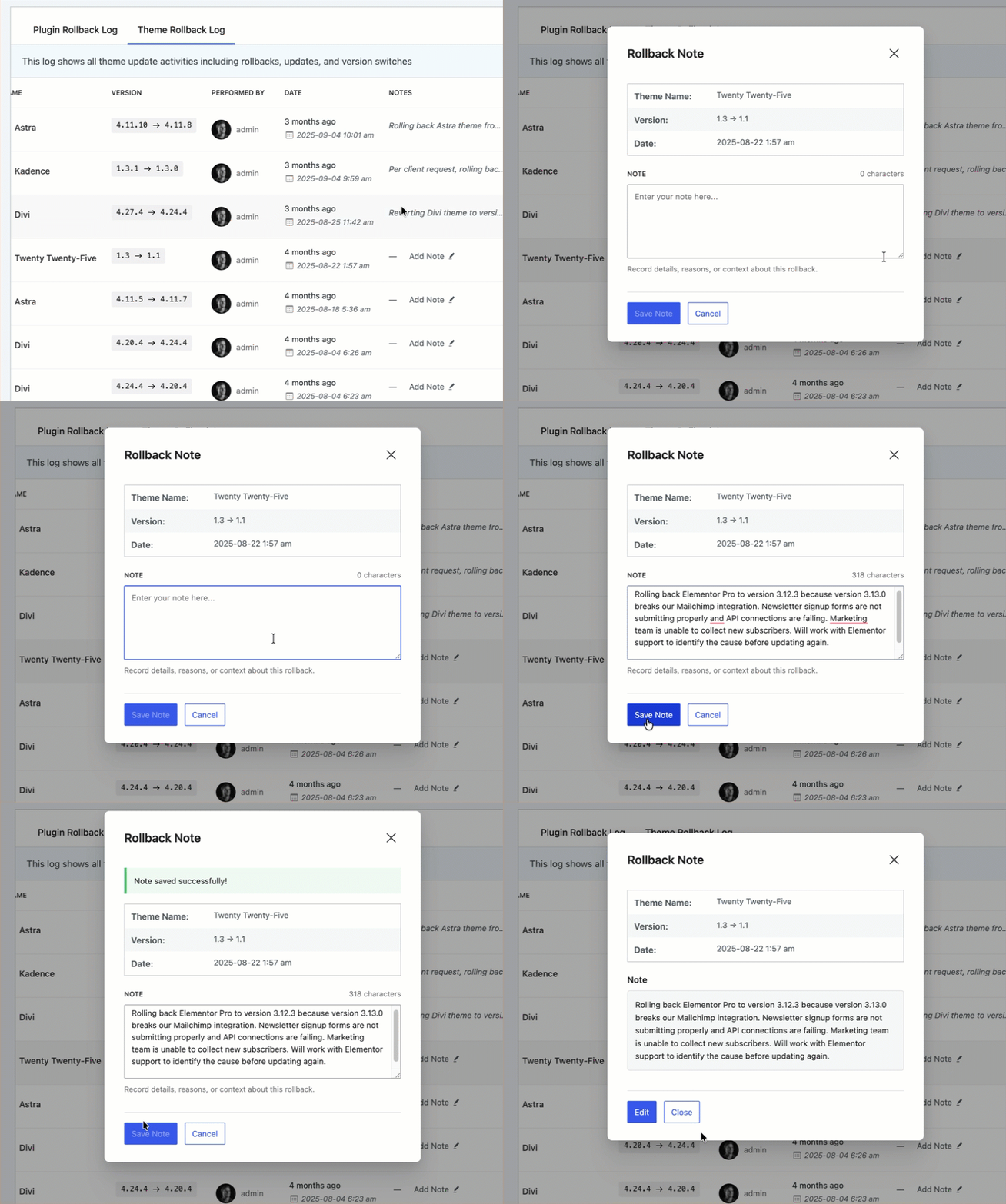
The new notes modal has two distinct modes:
View Mode (when you click “View Note”):
- Shows your full note in a nice, readable format
- Displays the rollback context right there (plugin name, version, date)
- Has an “Edit” button if you need to make changes
- Clean “Close” button to get back to work
Edit Mode (when you click “Add Note” or “Edit”):
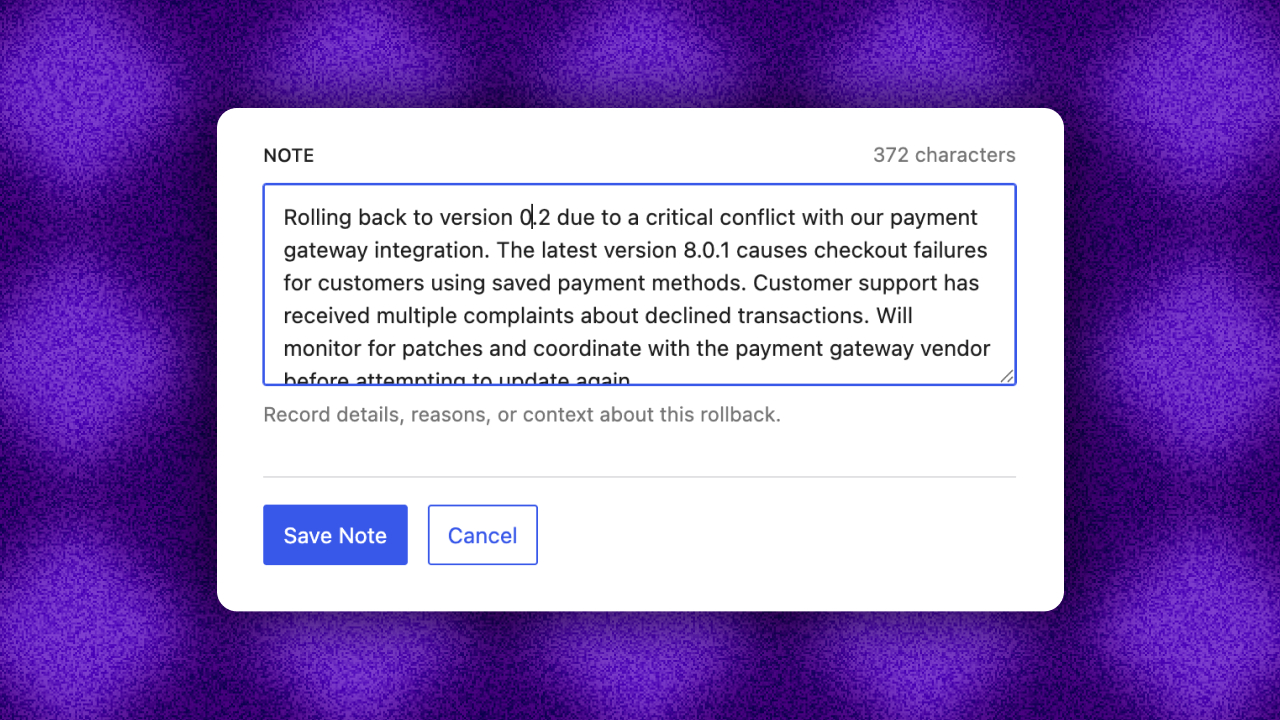
- Full-size textarea with plenty of room to write
- Character counter so you know how wordy you’re getting
- Helpful context about what to include in your notes
- Clear “Save” and “Cancel” buttons
Smart Behavior That Reads Your Mind (Kinda)
The system is smart enough to know what you need:
- No note yet? Button says “Add Note” and opens straight to edit mode
- Already have a note? Button says “View Note” and shows you the content first
- Want to edit? Click “Edit” in view mode and boom—you’re typing
- Changed your mind? “Cancel” takes you back to view mode (or closes if there was no note)
It’s like the modal knows what you’re trying to do before you do. Witchcraft? Nah, just good UX.
Why This Matters
Look, we know notes aren’t the most fantastic feature in the world. But when you’re managing a site with regular updates and occasional rollbacks, being able to document why you did something is crucial.
Six months from now, when someone (maybe you) asks “why is this plugin still on version 2.3.1?” you’ll be glad you wrote that note. And you’ll be even gladder that you can actually read it now.
Try It Out
WP Rollback Pro 1.2.0 is live now. If you’ve ever added a note to a rollback, head to your Activity Log and click “View Note” on any entry. We think you’ll appreciate the upgrade.
And if you’ve avoided using notes because the old system was annoying? Give it another shot. We promise it’s better now.
Got feedback on the new notes feature? We’d love to hear it! Drop us a line through our support channels and let us know what you think. We’re always looking to make WP Rollback Pro even better.
Happy rolling back (or forward)! ????