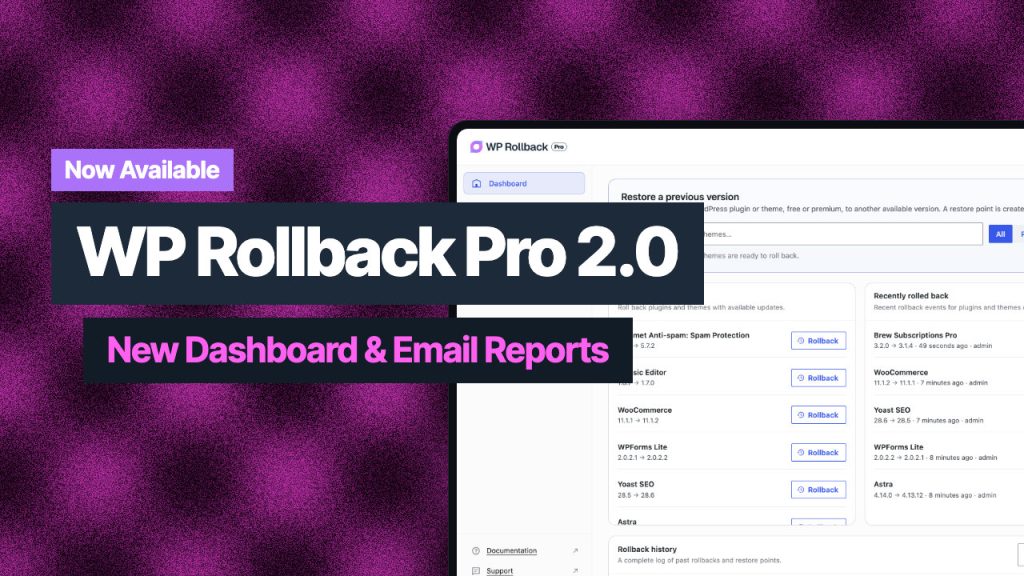




WP Rollback Pro 2.0 came out a month ago with a new dashboard and email reports. 2.1 builds on it in two directions: knowing what changed on your site, and trusting the files a rollback puts back.
There’s also a Rollback button on every Pro screen, banners for popular premium plugins and themes, more for AI agents, and a good list of fixes. Here’s what’s new, most important first.
Every file checked against WordPress.org
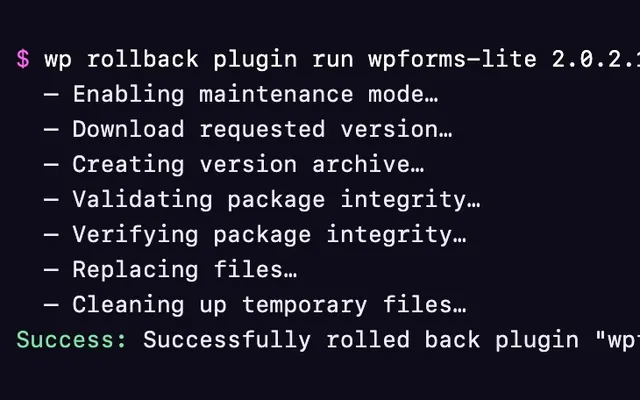
When you roll back a plugin from WordPress.org, Pro now checks every file in the download against the checksums WordPress.org publishes for that version. It’s the same data wp plugin verify-checksums uses. If a file doesn’t match, the rollback stops before it changes anything on your site.
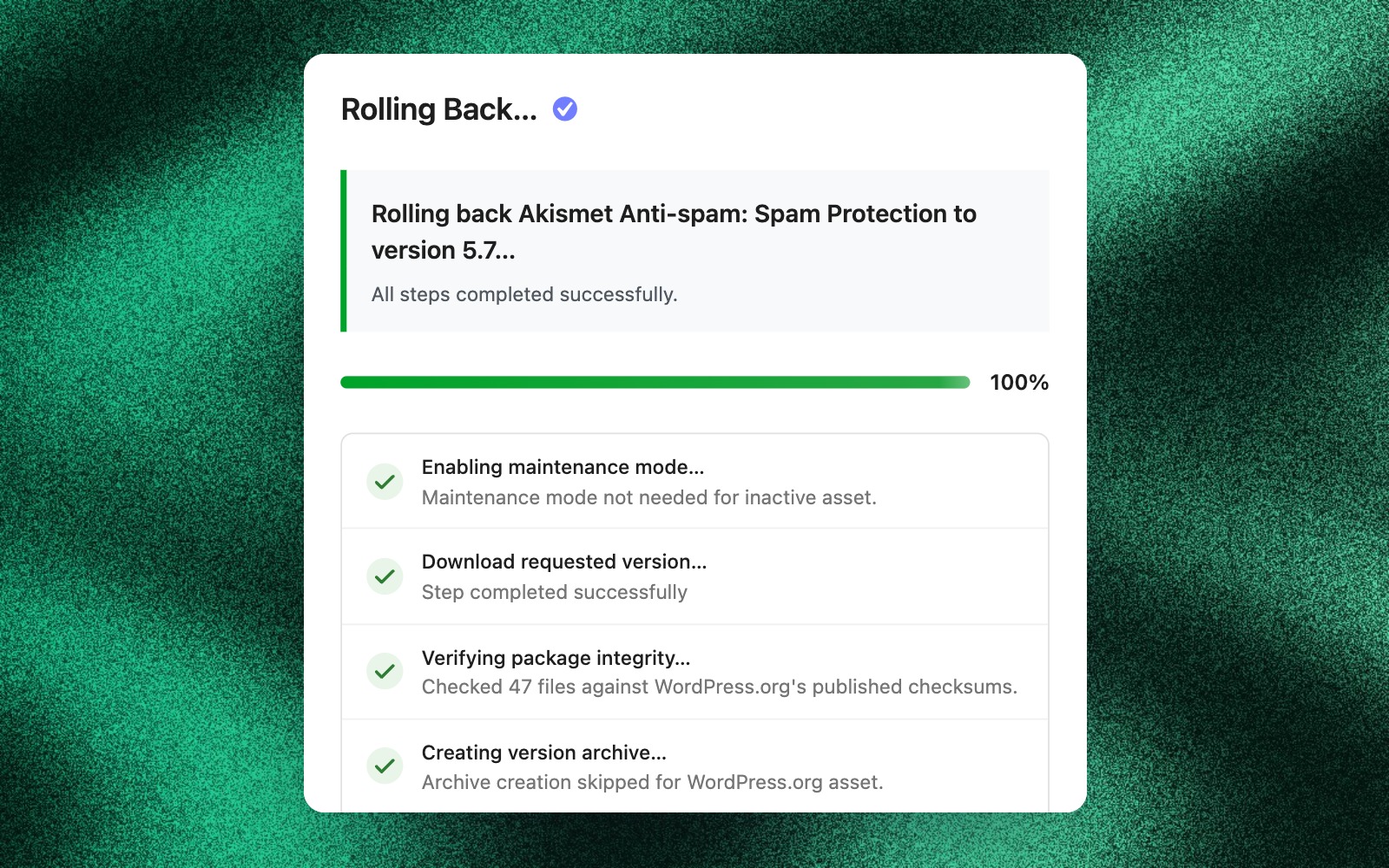
Plugin Vault downloads get the same care. A Vault download that fails its integrity check is rejected before Pro opens it, and one that can’t be verified at all stops with a clear message instead of installing unchecked.
See when every plugin was updated
Something broke on your site this morning. Which plugin changed?
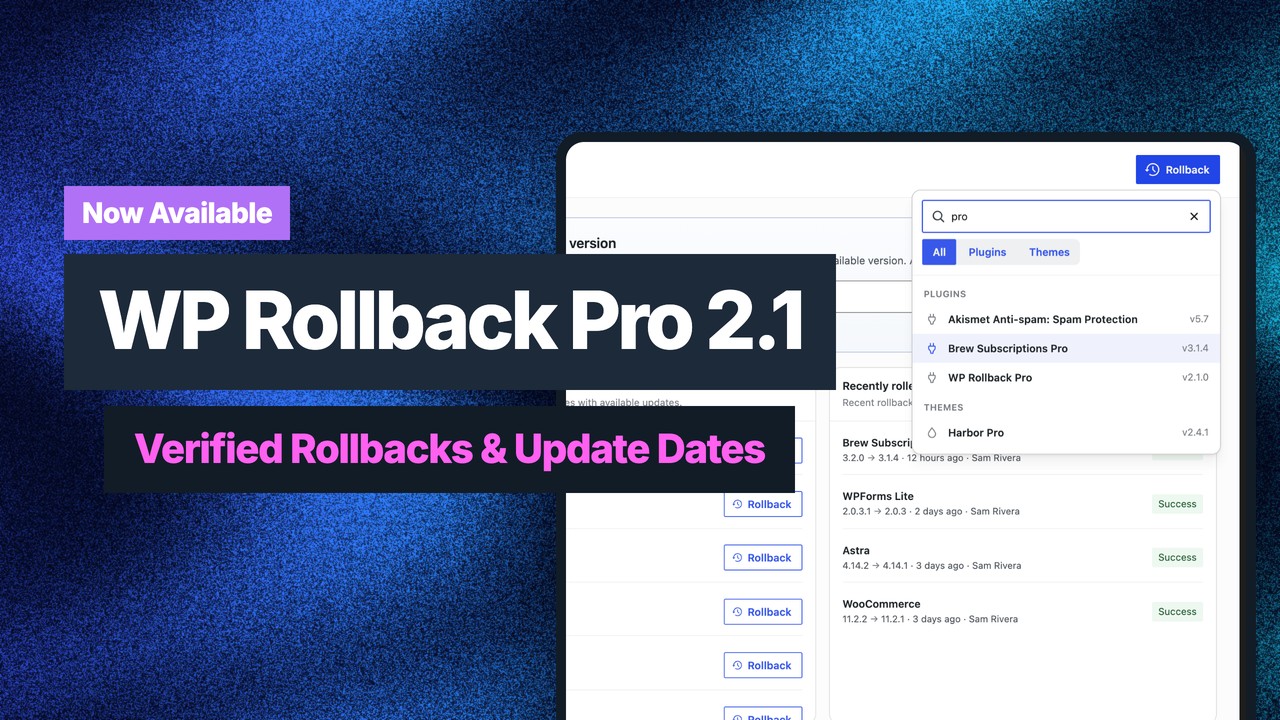
The Plugins and Themes screens now show when each plugin and theme was last updated on your site, and when that version was released. It sits right next to the version number, so you can spot what changed without digging through logs.
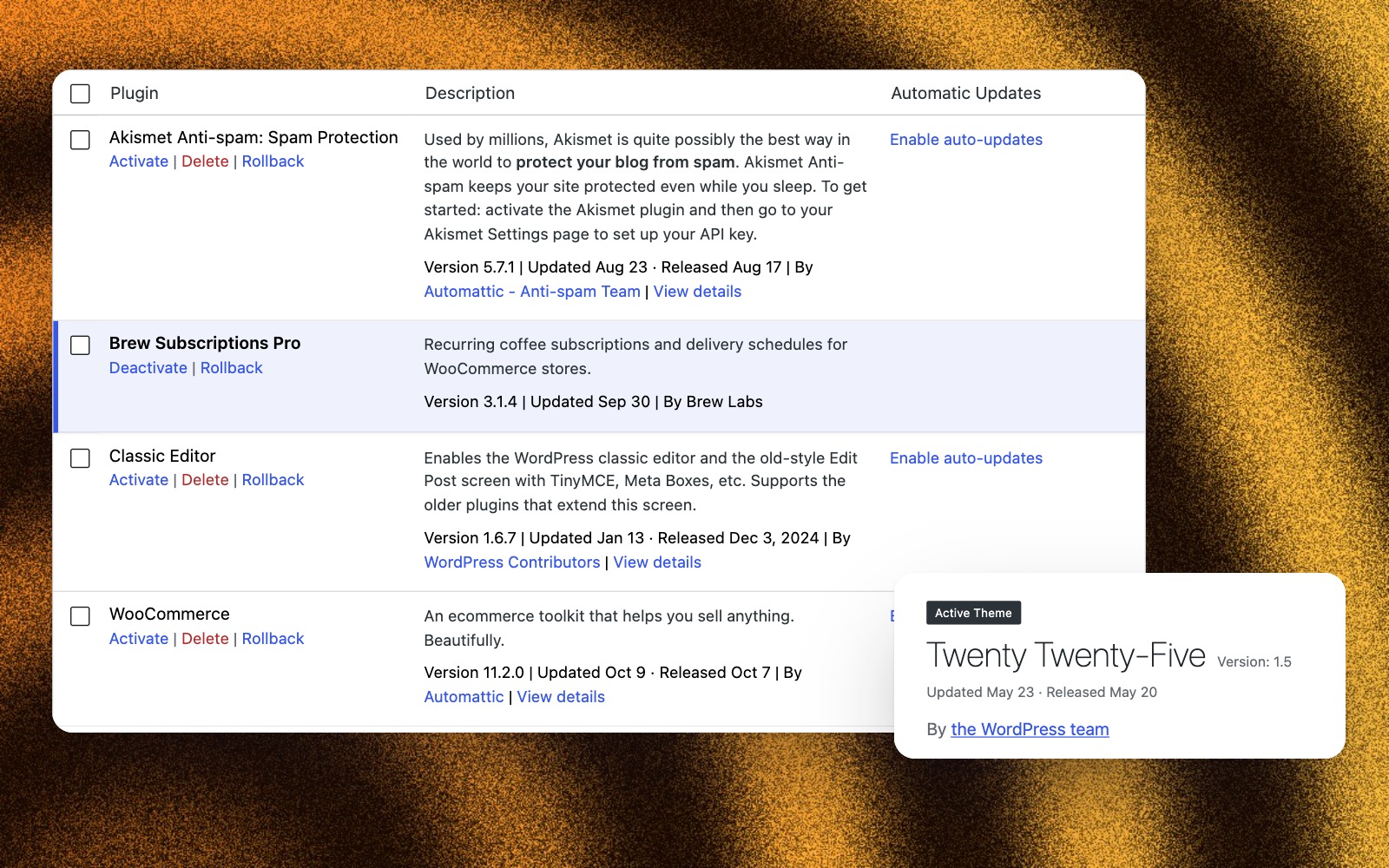
The dates are on by default. You can turn them off for plugins or themes under “Tools → WP Rollback Pro → Settings → General”.
Roll back from anywhere in Pro
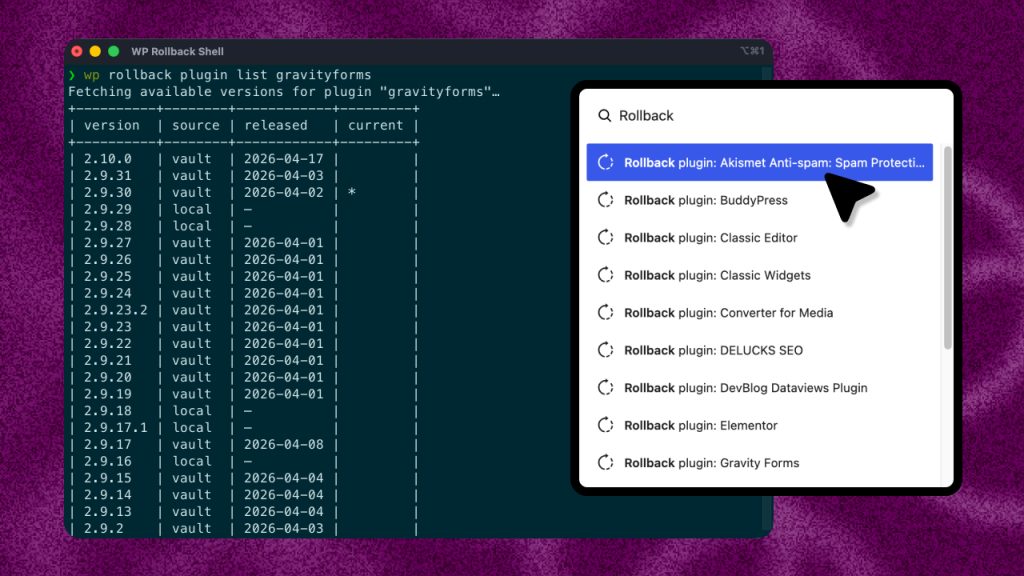
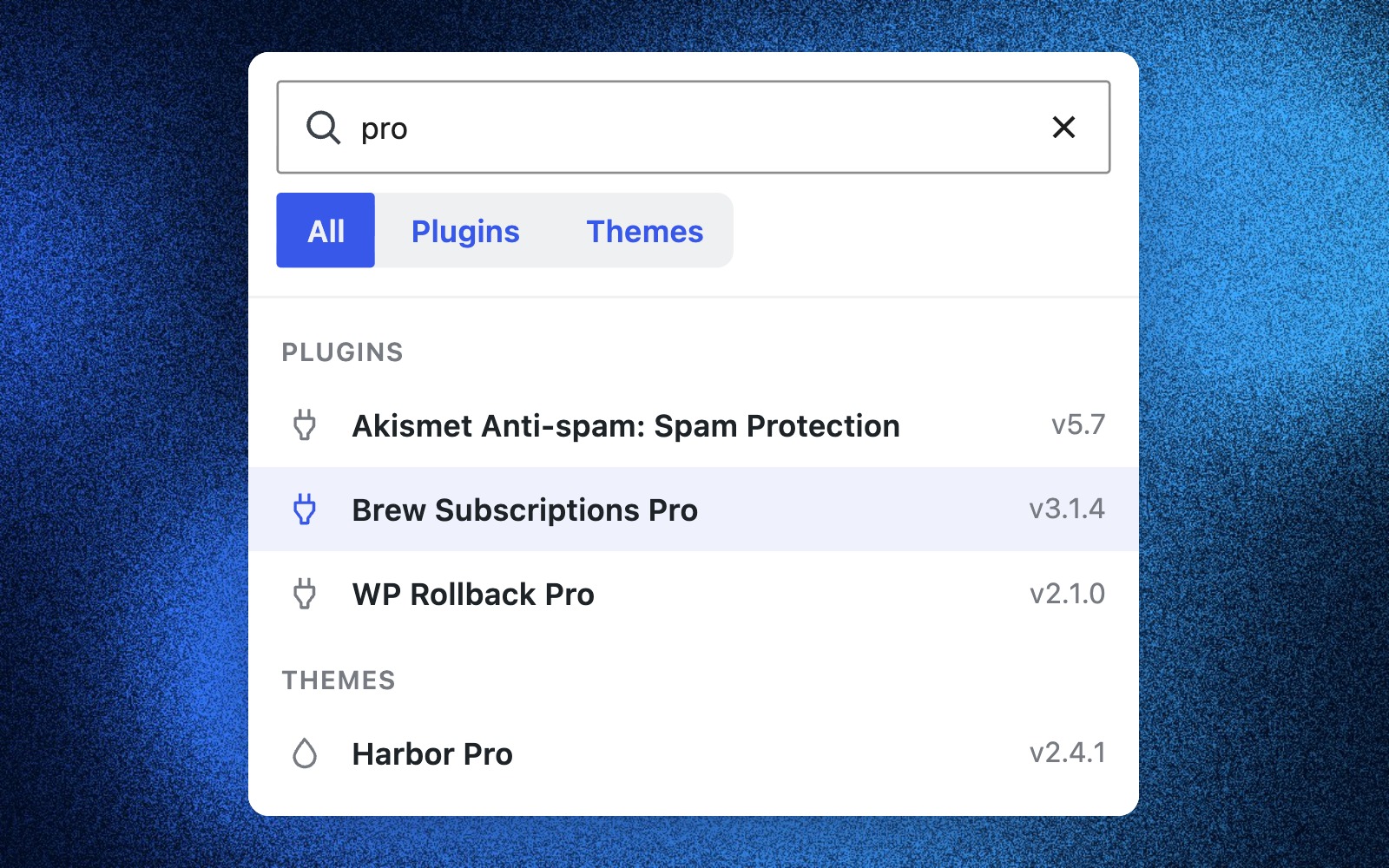
There’s a new “Rollback” button at the top of every WP Rollback Pro screen. Click it, type a few letters, and jump straight to the rollback screen for any plugin or theme on your site, free or premium.
Banners for premium plugins and themes
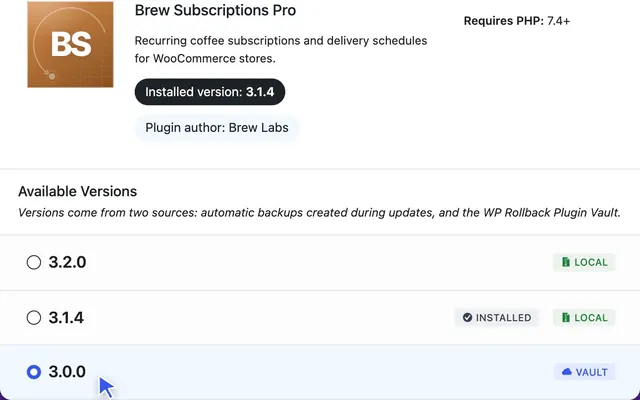
WordPress.org has banners and icons for its plugins, but premium plugins and themes used to show up blank on the rollback screen. Popular ones like Gravity Forms, ACF PRO and Divi now get a banner and icon, and popular themes like Astra and Kadence get a banner too, so you can tell at a glance you’re in the right place.
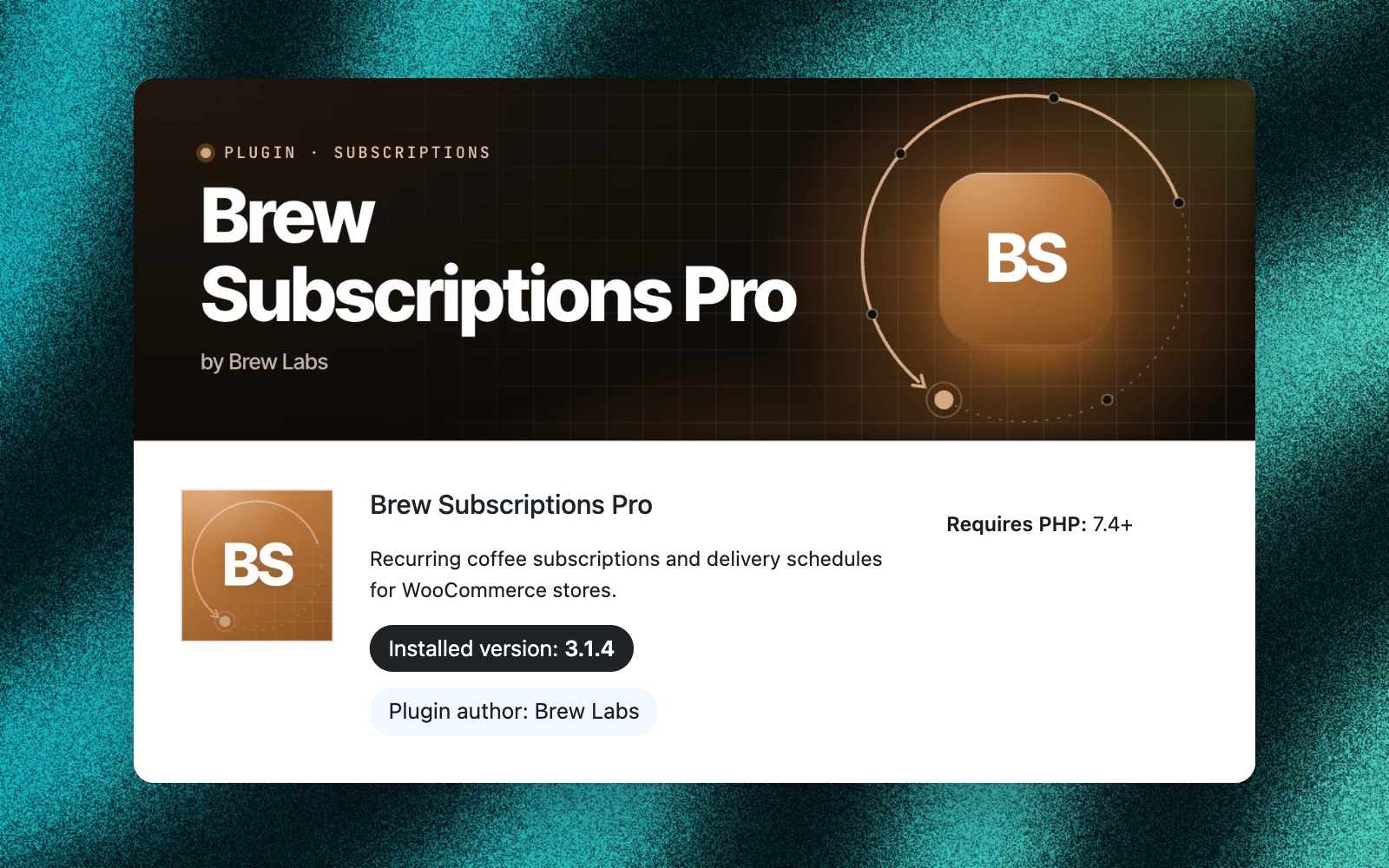
Premium themes also show their own screenshot on the rollback screen now.
A quick welcome for new installs
After you install WP Rollback Pro, a short welcome pops out of the Tools menu and asks what you want to do. Pick “Roll back a plugin” or “Roll back a theme” and it walks you through your first rollback, or take the 1-minute tour of Pro.

It only shows on new installs, and only until you pick something or click “Not now”. Agencies can switch it off on client sites with the wpr_onboarding_enabled filter.
More for AI agents
Pro 2.0 let AI agents and MCP clients list versions, roll back, and read your rollback history through the WordPress Abilities API. 2.1 adds two more abilities and a way to leave a note:
| Ability | What it does |
|---|---|
wp-rollback/list-archives | Lists the local backup archives Pro keeps for your plugins and themes |
wp-rollback/delete-archive | Deletes a backup archive you no longer need |
wp-rollback/rollback | Now takes an optional note, saved with the rollback just like one you’d type in the admin |
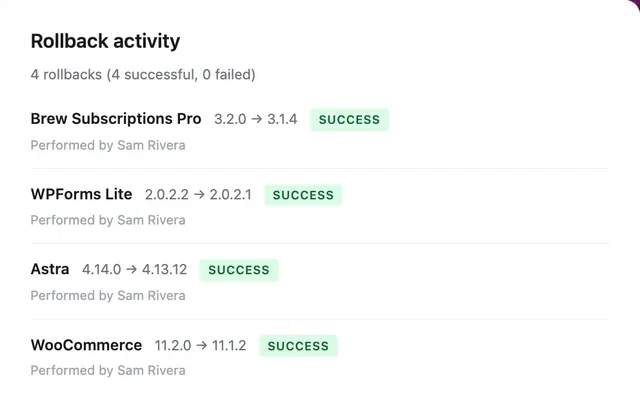
Rollbacks an agent runs are marked “ability” in the Activity Log, so you can always tell which ones came from an agent.
More control over what shows up
Settings has a few new tabs:
- “General” turns off the update and release dates, and hides the “Roll Back Plugins” and “Roll Back Themes” buttons at the top of the Plugins and Themes screens. Each plugin’s and theme’s own Rollback link stays.
- “Plugin Vault” turns Vault downloads or uploads off. Hosts and managed platforms can lock them off in
wp-config.php:WPR_VAULT_DISABLEDturns off both, andWPR_VAULT_CONTRIBUTE_DISABLEDturns off just the uploads. - “Newsletter” lets you subscribe to the WP Rollback newsletter, and you’ll see the same offer after a rollback. Nothing is sent unless you click “Subscribe”.

Fixes
- Going straight from one rollback screen to another now loads the new plugin or theme, without the last rollback’s completion message hanging around.
- A premium plugin whose updater borrows a WordPress.org plugin’s name is no longer mistaken for that plugin, so a rollback can’t install the wrong one. Reports count those plugins correctly now too.
- Rollback cleanup only deletes the temporary files WP Rollback created and leaves everything else alone.
- Backup archives the Vault can’t accept, like files over 50 MB, are no longer retried every day.
- When Pro is network activated, report emails and the license notice link to Network Admin.
- Activating Pro now switches off the free plugin even when its folder was renamed, like
wp-rollback-master/. - The Plugins or Themes item in the Pro sidebar stays highlighted while you’re on a rollback screen.
Those are the highlights. The changelog has the full list.
Updating to 2.1
Update from “Dashboard → Updates” like any other plugin, or download the latest ZIP from your account. The free WP Rollback 3.3.0 is out today too, with the same welcome for new installs and the newsletter offer.
Give it a spin and let us know what you think. 🚀